The most common misconception surrounding the XPS driver for Windows 11 is the need to “download” it from a web search. In fact, Microsoft does not offer a standalone installer for the XPS driver on its official website for Windows 11. Instead, the driver is embedded within the operating system as an optional feature. Users who search for “XPS printer driver download Windows 11” are often led to unsavory third-party driver repositories, which risk delivering outdated, malformed, or malicious software. The correct and secure method involves using the Windows 11 Settings app.
For users who prefer command-line methods or need to deploy the driver across multiple corporate machines, Windows 11 also supports installation via PowerShell with administrative privileges. The command Add-WindowsCapability -Name "XPS.Printing~~~~0.0.1.0" -Online achieves the same result as the graphical interface. This approach is particularly efficient for system administrators managing fleets of Windows 11 workstations that require standardized document processing workflows.
In conclusion, while the XPS format has not displaced PDF in the consumer space, the XPS Printer Driver remains a powerful, lightweight tool within Windows 11 for users who demand exacting document fidelity. The key to harnessing this tool is not an external download, but an internal discovery: accessing the operating system’s optional features. By resisting the temptation to search the web for a driver file and instead utilizing the integrated Windows 11 settings, users can securely add the Microsoft XPS Document Writer in moments. In doing so, they unlock a reliable, high-fidelity virtual printing capability that continues to serve specific professional and archival needs in the modern operating system era.
First, it is essential to clarify what the XPS Printer Driver actually is. Unlike a conventional driver for a physical hardware printer (e.g., an HP LaserJet or a Canon inkjet), the XPS Printer Driver creates a virtual print output. When a user selects “Microsoft XPS Document Writer” from the print dialog, the driver converts the document into an .xps file instead of producing a paper printout. The XPS format uses vector-based graphics and Open Packaging Conventions, ensuring that the document’s layout, fonts, and high-resolution images remain identical across different devices and operating systems. For Windows 11 users, this driver is invaluable for archiving documents, sharing legally binding layouts, or printing to devices that natively support XPS, a common feature in many enterprise-grade printers from manufacturers like Xerox and Ricoh.
To install the XPS Printer Driver on Windows 11, a user must navigate to . In the resulting list, they should locate and check two specific items: “XPS Printer” (the driver itself) and “XPS Viewer” (the application to open and manage .xps files). After selecting these and clicking “Install,” Windows will retrieve the necessary components directly from Microsoft’s servers. The process requires an active internet connection and takes less than a minute. Once completed, the “Microsoft XPS Document Writer” will appear as a standard printer in the Settings > Bluetooth & devices > Printers & scanners section.
In the ecosystem of digital document management, the Portable Document Format (PDF) has long reigned as the default standard for sharing and printing files. However, Microsoft developed its own competing technology: the XML Paper Specification (XPS). While less ubiquitous, the XPS format offers distinct advantages in preserving document fidelity, especially in professional environments. For users of Windows 11, the path to leveraging this format is not always immediately obvious, as the XPS Printer Driver is no longer installed by default. Understanding how to download and enable this driver is a matter of navigating Windows 11’s optional features, not searching third-party websites—a critical distinction for security and system stability.
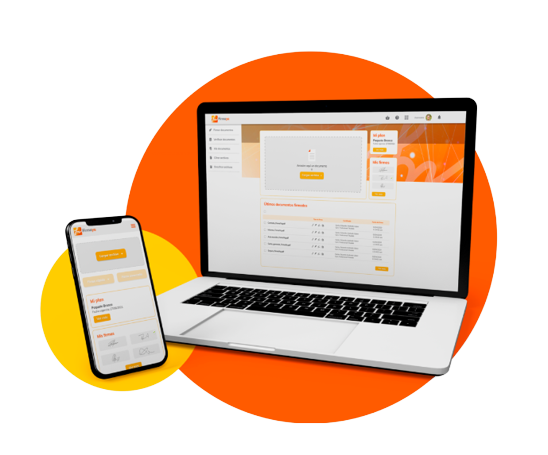
Desde cualquier lugar
Firma tus documentos completamente en línea, desde cualquier navegador web de forma fácil, segura y confiable.
Ver planes y precios
Desde cualquier lugar
Firma tus documentos completamente en línea, desde cualquier navegador web de forma fácil, segura y confiable.
Agiliza tus procesos
¡Cansado de crear y firmar volúmenes de documentos uno por uno! Con Firmaya eso se acabó… Nuestra herramienta te permite simplificar tus procesos sin complicaciones.
Agiliza tus procesos
¡Cansado de crear y firmar volúmenes de documentos uno por uno! Con Firmaya eso se acabó… Nuestra herramienta te permite simplificar tus procesos sin complicaciones.
Ver planes y preciosFirma sin límites
Adquiere tu firma digital centralizada y recibe de manera gratuita nuestro Firmaya Driver, para que firmes todo lo que necesitas sin límite alguno y sin Token.
Ver certificados digitales
Firma sin límites
Adquiere tu firma digital centralizada y recibe de manera gratuita nuestro Firmaya Driver, para que firmes todo lo que necesitas sin límite alguno y sin Token.
100% Legal
Tus documentos contarán con toda la validez jurídica y seguridad, debido a que GSE es una entidad de certificación digital acreditada por ONAC.
Integración con tus aplicaciones
Firmaya se integra a la perfección con las aplicaciones y servicios que actualmente tu empresa este utilizando.
Olvídate del papel
No más impresión, ni escaneado de documentos, con nuestra solución ahorrarás dinero y ayudarás al medio ambiente.
100% Legal
Tus documentos contarán con toda la validez jurídica y seguridad, debido a que GSE es una entidad de certificación digital acreditada por ONAC.
Firmaya se integra a la perfección con las aplicaciones y servicios que actualmente tu empresa este utilizando.
Integración con tus aplicaciones
Olvídate del papel
No más impresión, ni escaneado de documentos, con nuestra solución ahorrarás dinero y ayudarás al medio ambiente.
¡Funciona para todos!
Fácil para las personas y potente para las empresas.
Personas
Firma documentos rápidamente para liberar tiempo en tus tareas más importantes. No solo se vuelve más fácil para las personas hacer negocios contigo, sino que también te verás más profesional.
Empresas
Concéntrate en las partes importantes de tu negocio, acelera las ventas, cierre tratos más rápido, y firma tus documentos con unos pocos clics.
The most common misconception surrounding the XPS driver for Windows 11 is the need to “download” it from a web search. In fact, Microsoft does not offer a standalone installer for the XPS driver on its official website for Windows 11. Instead, the driver is embedded within the operating system as an optional feature. Users who search for “XPS printer driver download Windows 11” are often led to unsavory third-party driver repositories, which risk delivering outdated, malformed, or malicious software. The correct and secure method involves using the Windows 11 Settings app.
For users who prefer command-line methods or need to deploy the driver across multiple corporate machines, Windows 11 also supports installation via PowerShell with administrative privileges. The command Add-WindowsCapability -Name "XPS.Printing~~~~0.0.1.0" -Online achieves the same result as the graphical interface. This approach is particularly efficient for system administrators managing fleets of Windows 11 workstations that require standardized document processing workflows. xps printer driver download windows 11
In conclusion, while the XPS format has not displaced PDF in the consumer space, the XPS Printer Driver remains a powerful, lightweight tool within Windows 11 for users who demand exacting document fidelity. The key to harnessing this tool is not an external download, but an internal discovery: accessing the operating system’s optional features. By resisting the temptation to search the web for a driver file and instead utilizing the integrated Windows 11 settings, users can securely add the Microsoft XPS Document Writer in moments. In doing so, they unlock a reliable, high-fidelity virtual printing capability that continues to serve specific professional and archival needs in the modern operating system era. The most common misconception surrounding the XPS driver
First, it is essential to clarify what the XPS Printer Driver actually is. Unlike a conventional driver for a physical hardware printer (e.g., an HP LaserJet or a Canon inkjet), the XPS Printer Driver creates a virtual print output. When a user selects “Microsoft XPS Document Writer” from the print dialog, the driver converts the document into an .xps file instead of producing a paper printout. The XPS format uses vector-based graphics and Open Packaging Conventions, ensuring that the document’s layout, fonts, and high-resolution images remain identical across different devices and operating systems. For Windows 11 users, this driver is invaluable for archiving documents, sharing legally binding layouts, or printing to devices that natively support XPS, a common feature in many enterprise-grade printers from manufacturers like Xerox and Ricoh. Users who search for “XPS printer driver download
To install the XPS Printer Driver on Windows 11, a user must navigate to . In the resulting list, they should locate and check two specific items: “XPS Printer” (the driver itself) and “XPS Viewer” (the application to open and manage .xps files). After selecting these and clicking “Install,” Windows will retrieve the necessary components directly from Microsoft’s servers. The process requires an active internet connection and takes less than a minute. Once completed, the “Microsoft XPS Document Writer” will appear as a standard printer in the Settings > Bluetooth & devices > Printers & scanners section.
In the ecosystem of digital document management, the Portable Document Format (PDF) has long reigned as the default standard for sharing and printing files. However, Microsoft developed its own competing technology: the XML Paper Specification (XPS). While less ubiquitous, the XPS format offers distinct advantages in preserving document fidelity, especially in professional environments. For users of Windows 11, the path to leveraging this format is not always immediately obvious, as the XPS Printer Driver is no longer installed by default. Understanding how to download and enable this driver is a matter of navigating Windows 11’s optional features, not searching third-party websites—a critical distinction for security and system stability.

Solicita más información
Dejános tus datos y un experto se pondrá en contacto contigo para asesorarte.
Preguntas frecuentes
Conoce las respuestas a las inquietudes más comunes sobre firmas electrónicas y digitales.
Preguntas frecuentes
Conoce las respuestas a las inquietudes más comunes sobre firmas electrónicas y digitales.